Continue with this process only if you have authentication issues. - Microsoft Remote Desktop should already be open.
- Select the `Microsoft Remote Desktop` menu, then `Preferences`: [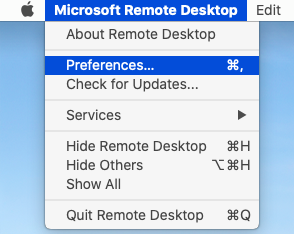](https://bookstack.reinmuthconsulting.com/uploads/images/gallery/2022-04/bbvvtShCrWYTYzvw-remote-desktop-preferences.png)
- Switch to the `User Accounts` tab and locate the `Username` field. Obviously replace Mark's name with your own, generally lower case only.
- Change from `FVC\username` to `username@ad.foleyvisioncenter.com`. - e.g. `FVC\mark` to `mark@ad.foleyvisioncenter.com`. Make sure you use **ad**.foleyvisioncenter.com and not just foleyvisioncenter.com! The AD stands for Active Directory.
This new username will work with both old and new servers. Here's what an old/incorrect entry looks like: [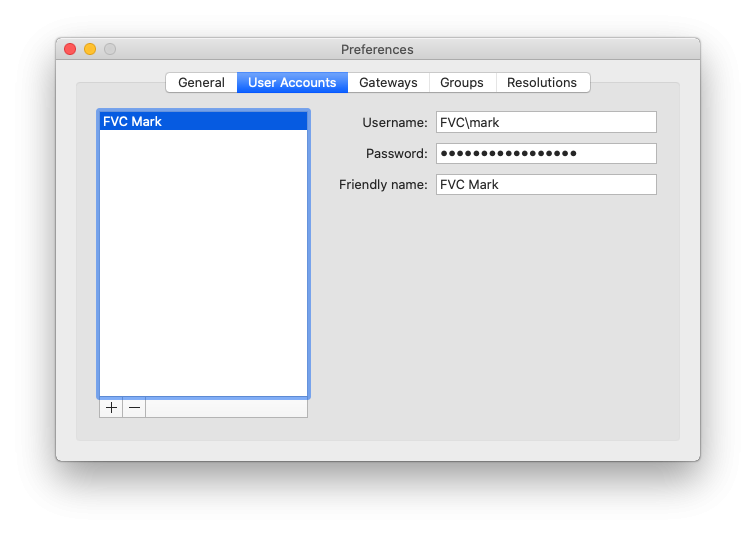](https://bookstack.reinmuthconsulting.com/uploads/images/gallery/2022-04/UErKlqOJT26ZMdMk-remote-desktop-user-account-old.png) And here's a new/corrected entry: [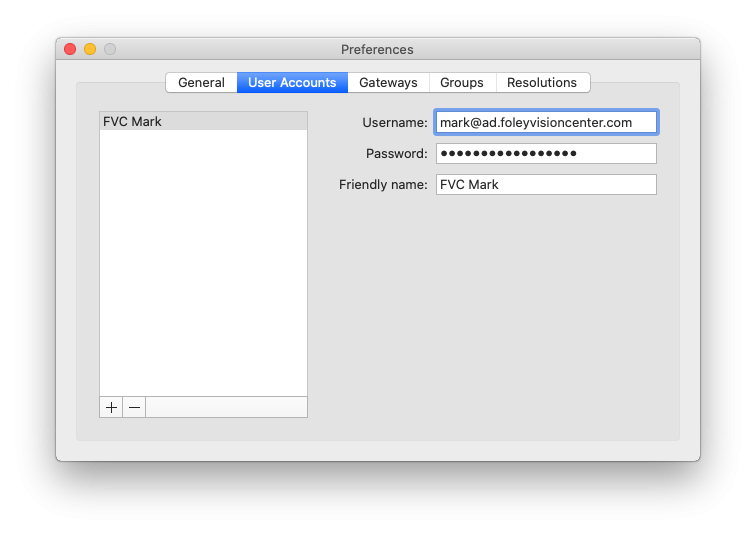](https://bookstack.reinmuthconsulting.com/uploads/images/gallery/2022-04/18KfSmdm6LwSNMGv-remote-desktop-user-account-new.png) - `Friendly name` can stay the same.
- Close the `Preferences` window and test the new connection.
- If you are still running into error messages, return to the main Server Upgrade instructions linked at the top of this page and look at the other troubleshooting options.