[](https://bookstack.reinmuthconsulting.com/uploads/images/gallery/2022-04/iQSRmT70BweHJat2-microsoft-remote-desktop-icon.png)
- With Microsoft Remote Desktop open you will now see either connection entries in icon view or list view. Select the one you usually connect with. Name will probably be `OfficeMate` or `fvcvm2`. Right-click (or control+left-click) the entry and select Duplicate: [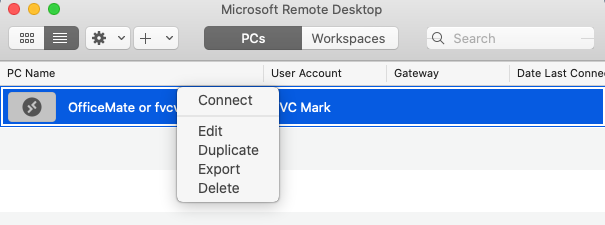](https://bookstack.reinmuthconsulting.com/uploads/images/gallery/2022-04/AJhMFW9MoLTIkTUM-contextual-menu-duplicate.png)
- You'll have two identical entries. Right-click (or control+left-click) one of them - doesn't matter which one - and choose `Edit`.
- Change the `PC name` from `fvcvm2.ad.foleyvisioncenter.com` to `fvcvm4.ad.foleyvisioncenter.com`
- Change the `Friendly name` to `fvcvm4` and click Save. If another name makes more sense to you, this `Friendly name` field can be modified, but please make some reference to fvcvm4 or "new server" or something like that. Or rename the old server to say "old." Should look very similar/identical to this: [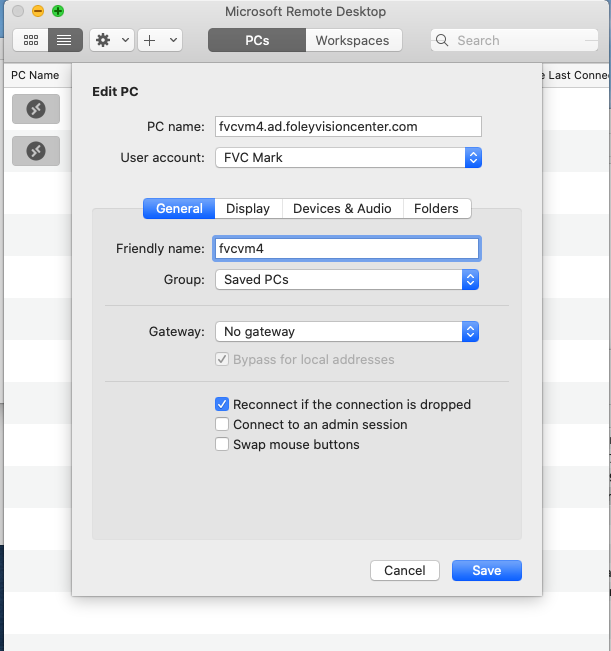](https://bookstack.reinmuthconsulting.com/uploads/images/gallery/2022-04/kospKKkfriuD489p-remote-desktop-edit-pc.png)
- Try double clicking the new entry. Best case, you're done! If you see **any** kind of error message please see the notes below. You may have to follow one or more of them to get fully connected.
Not working? The problem is almost certainly one of two issues.
1) Auth (user/pass) doesn't work. To ease the transition we've kept the password the same across both servers, but the username can change a bit.If you see a message stating `The User Account Did Not Work` cancel the connection request. We will edit the single account to work on both servers. [Auth solution linked here](https://bookstack.reinmuthconsulting.com/books/microsoft-remote-desktop-old-server-to-new-server/page/server-upgrade-remote-desktop-auth-fix).
2) Computer can't find the new server. Solution [linked here](https://bookstack.reinmuthconsulting.com/books/microsoft-remote-desktop-old-server-to-new-server/page/server-upgrade-remote-desktop-connection-fix). Though, make sure your VPN is connected if you're remote. --- If neither of the solutions work or you've reached the end of what you're willing to do, please reach out to Mark or Brandon for help, we are happy to help!