# Firefox

## **Step 1: Visit the webpage**
Click here:
https://1password.com/downloads/browser-extension/#browsers
* * *
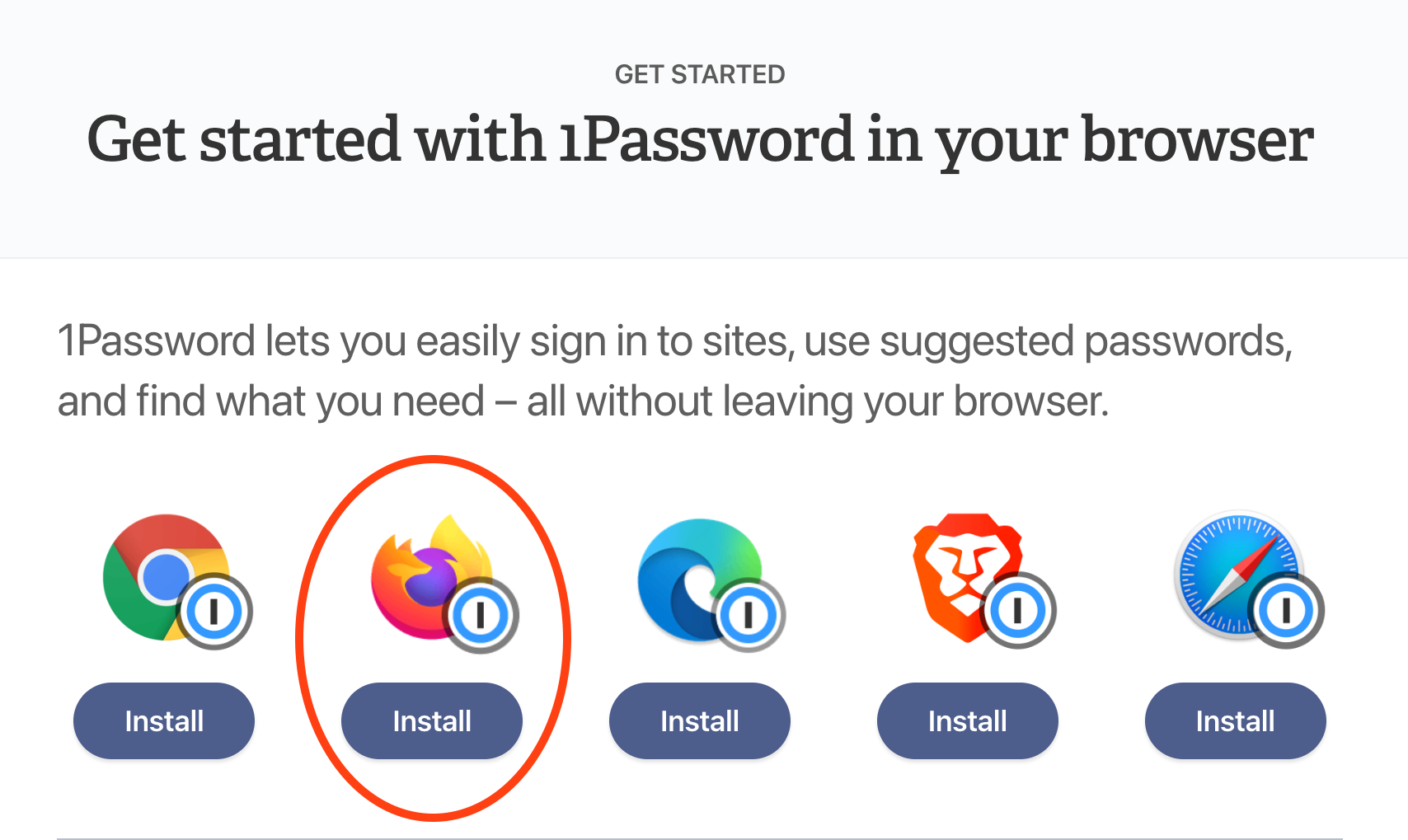
## **Step 2: Select Firefox**
Click on the "Install" button under the icon corresponding to the web browser you are using at the moment. In this instance, Firefox.
* * *
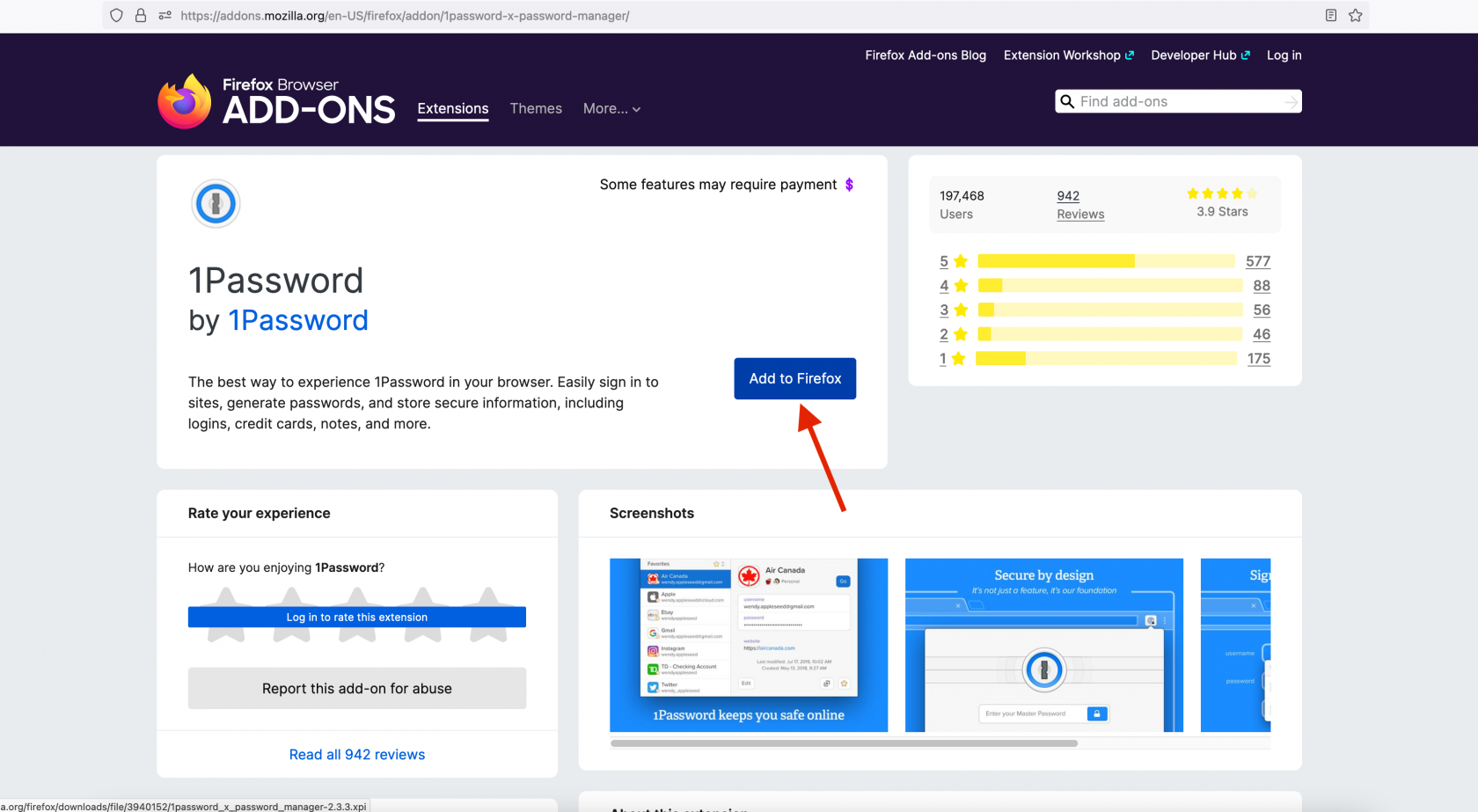
## **Step 3: Add the 1Password icon to your browser**
Click on the "Add to Firefox" button:
* * *
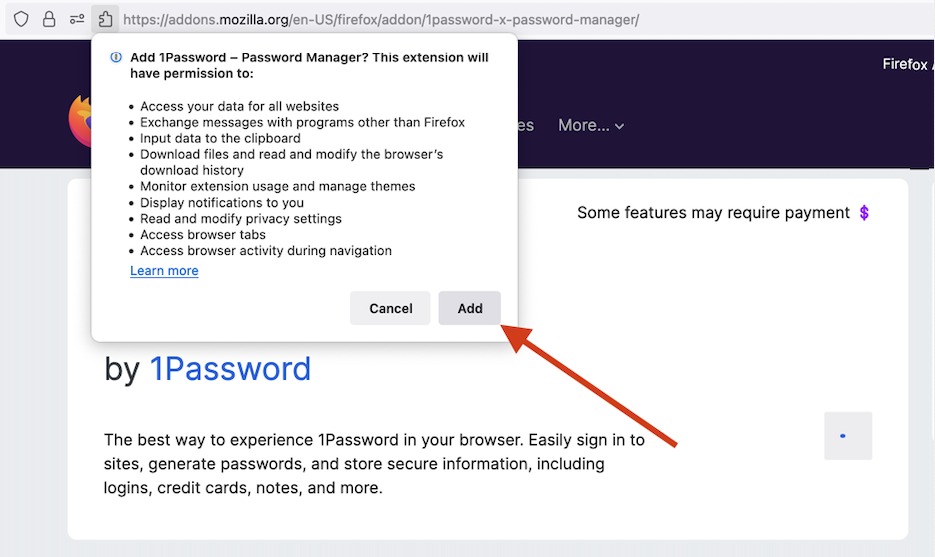
## **Step 4: Permissions**
Click on the "Add" button on the pop-up.
>📌
>
>Note: it is both OK and recommended to allow it the same permissions in Private Windows.
* * *
## **Step 5: Log into 1Password**
If your toolbar icon looks like this, skip to the next step: 
If your toolbar icon looks like this:  please click it and unlock 1Password with your password or biometric auth.
* * *
## **Step 6: Install Complete - but we're not done!**
1Password should now work for autofilling login information.
* * *
## **Step 7: Configure**
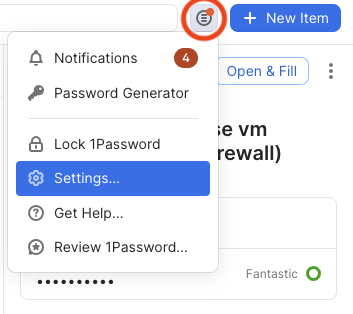
In the Firefox browser, click on the 1Password icon next to the address bar and then click on the "menu" icon (circled in red below), then `Settings...` as shown:
There are two tabs you will need to change settings in:
* **Autofill & save**
* **Accounts & vaults**
##### **Autofill & save**
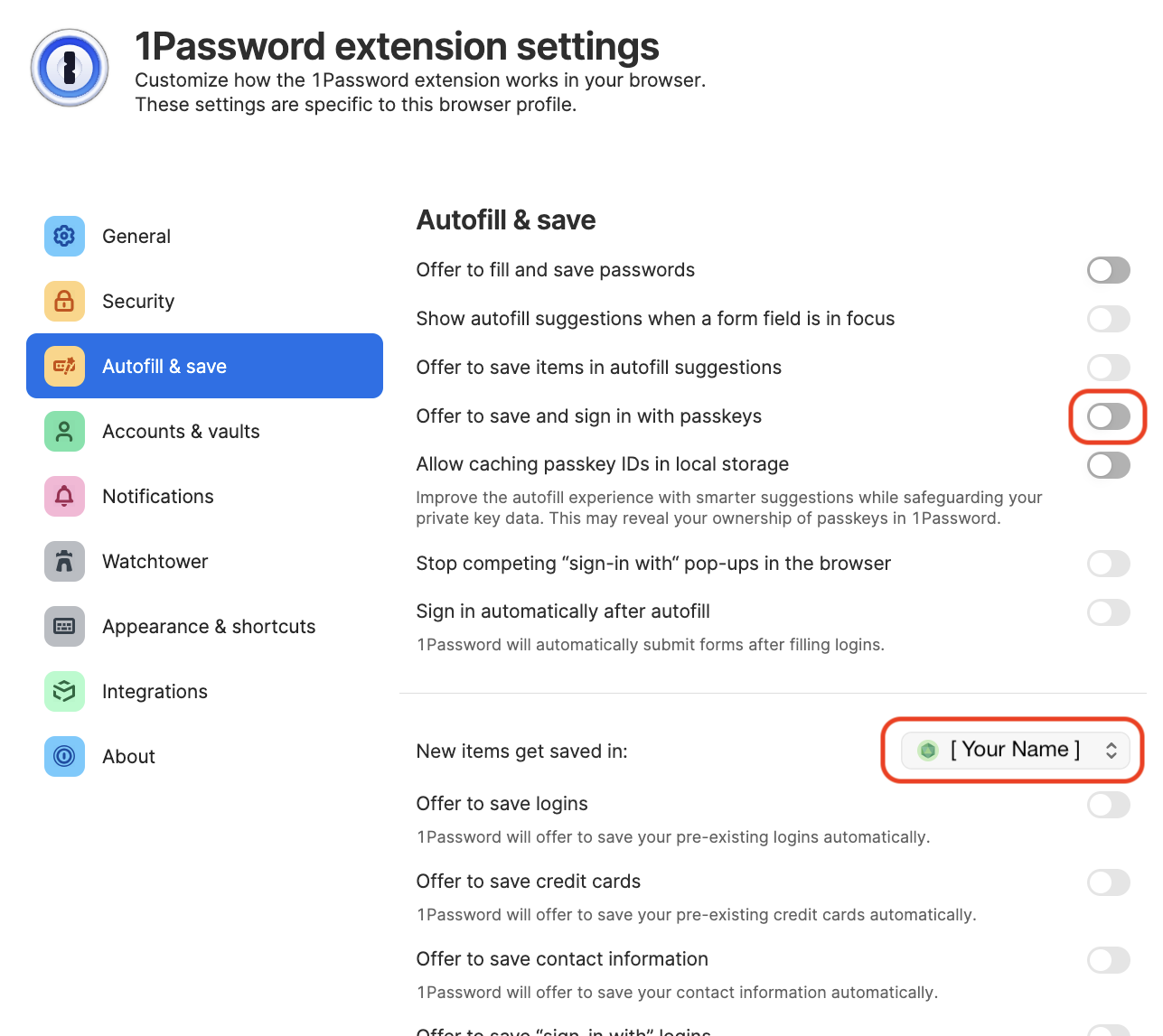
Click on the **Autofill & save** tab, and then disable "**Offer to save and sign in with passkeys**" because we currently do not use passkeys.
Make sure the vault selected next to "**New items get saved in:**" is set to **your _named vault_** e.g. `John Doe`. It should not be set to "Employee" or "Private" or anything else.
##### **Accounts & vaults**
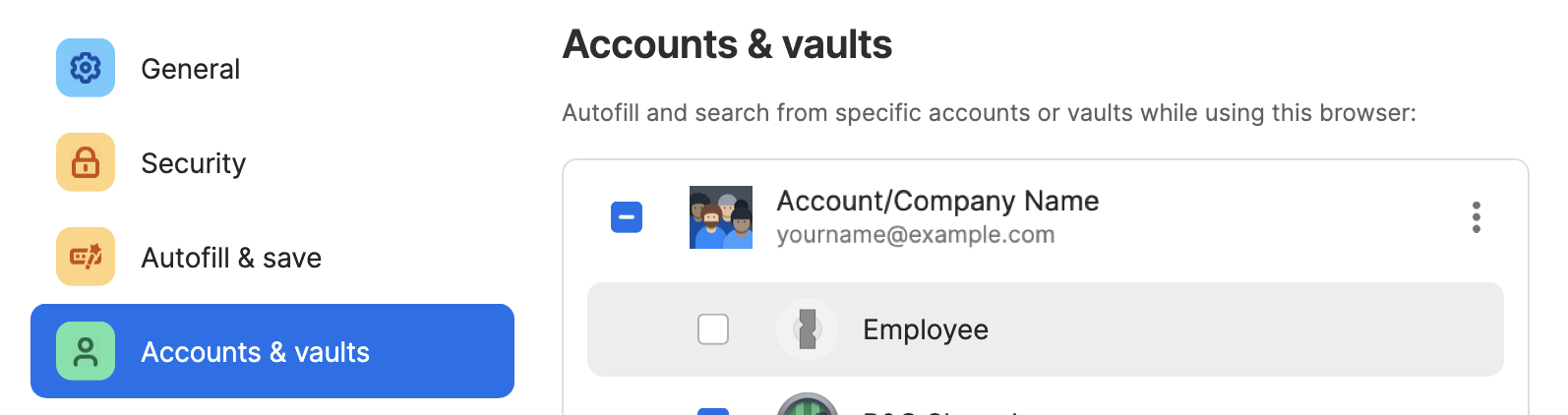
Click on the Accounts & Vaults tab on the left. Uncheck Employee:
> 📌
>
> As of May 1, 2024 the name of the "Private" vault has been changed to "Employee" for 1Password business accounts. This change was not made by us but [by the developers](https://blog.1password.com/employee-vault/) of 1Password. Please continue to leave the Employee vault empty.
* * *
## **Step 8: Proceed to Section 5**
You're done!... at least with this part. Please proceed to **Section 5** to install 1Password on your phone or other mobile device. Note that **Section 4** is optional. If you have any questions, contact IT for help.
### If you are still having trouble, please see:
https://support.1password.com/missing-browser-button/