
App Setup Method 1: Sign In with Account Details

Sign in and Configure the 1Password App with Account Details
For this section you will need your Account Details from Section 1:
- Sign-in Address
- Email Address (a.k.a. username)
- Secret Key (a.k.a. Access Key)
- Password (a.k.a. your master password)
You won't be able to complete the sign in process without them. You should have them open in a browser window if you've already completed Section 1. See Section 1: Retrieving Your 1Password Account Info if you haven't.
If this isn't the first computer you're setting up with the 1Password app, these Account Details can be found in your Vault. If you're unable to retrieve your account details, contact IT for assistance.
Once you have access to your Account Details, continue with Step 1 of this section.
You will also need the 1Password app installed and open. Installation is covered in Section 2.1.
Step 1: Sign In
Click Sign In to begin the process of adding your account to the app.
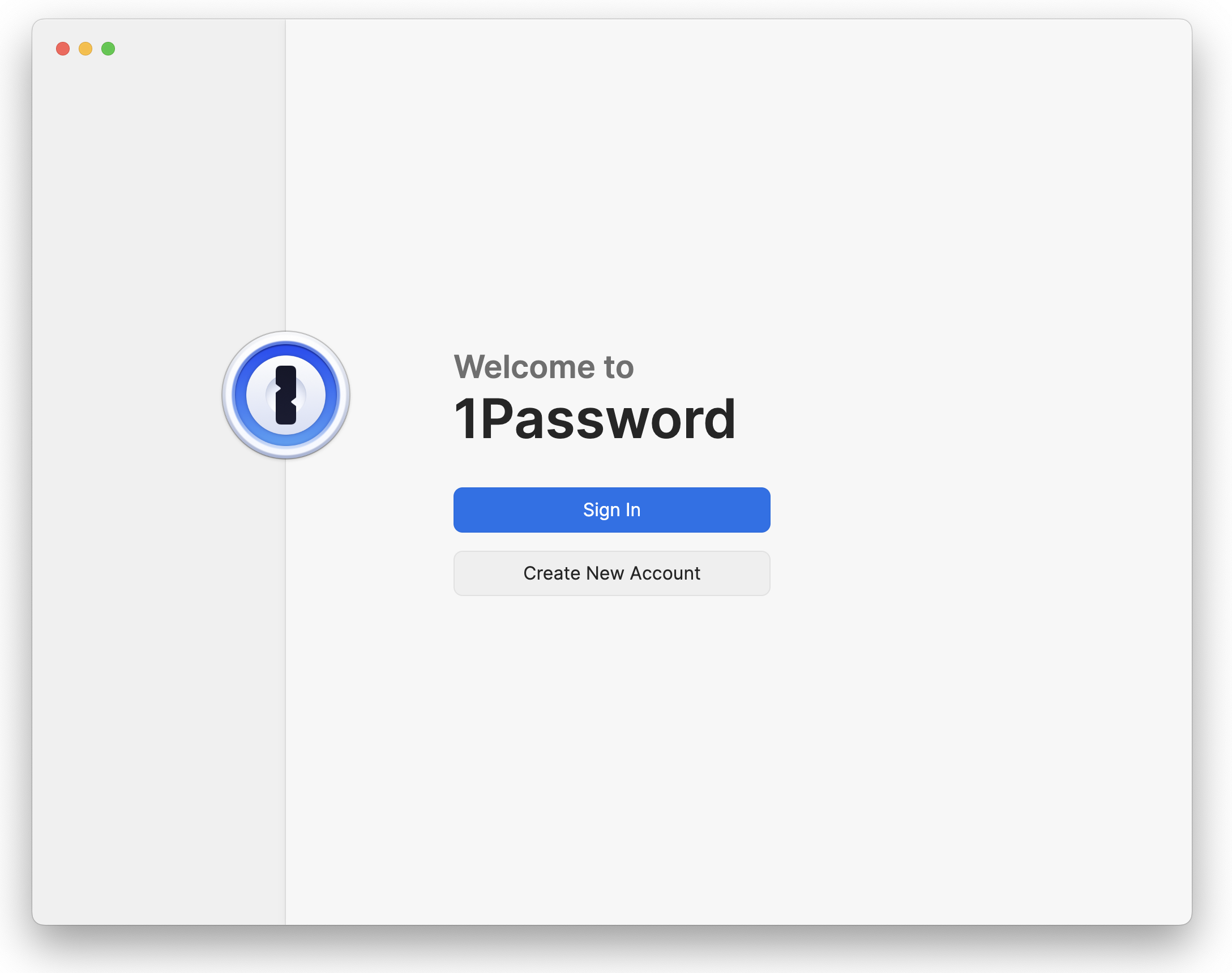
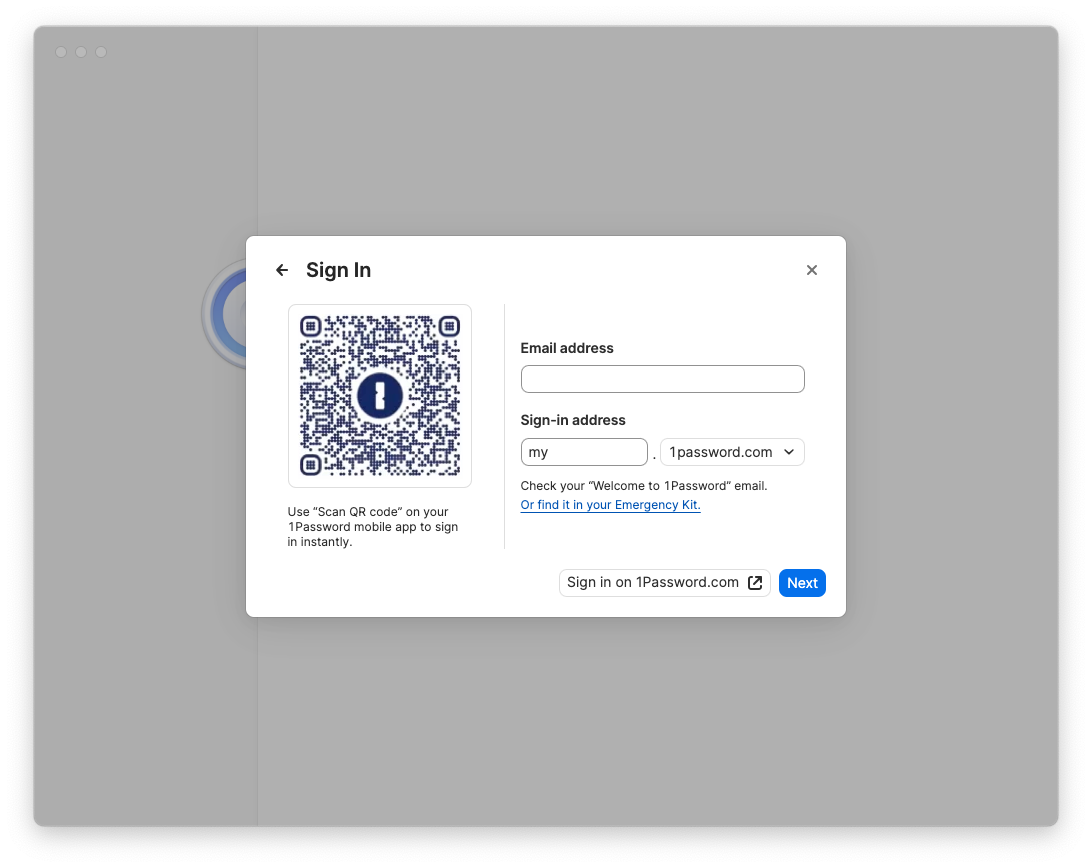
You will be prompted to enter the Email address and Sign-in address for the account. Enter them and click Next.
Next you need to enter the Secret Key and the Password.
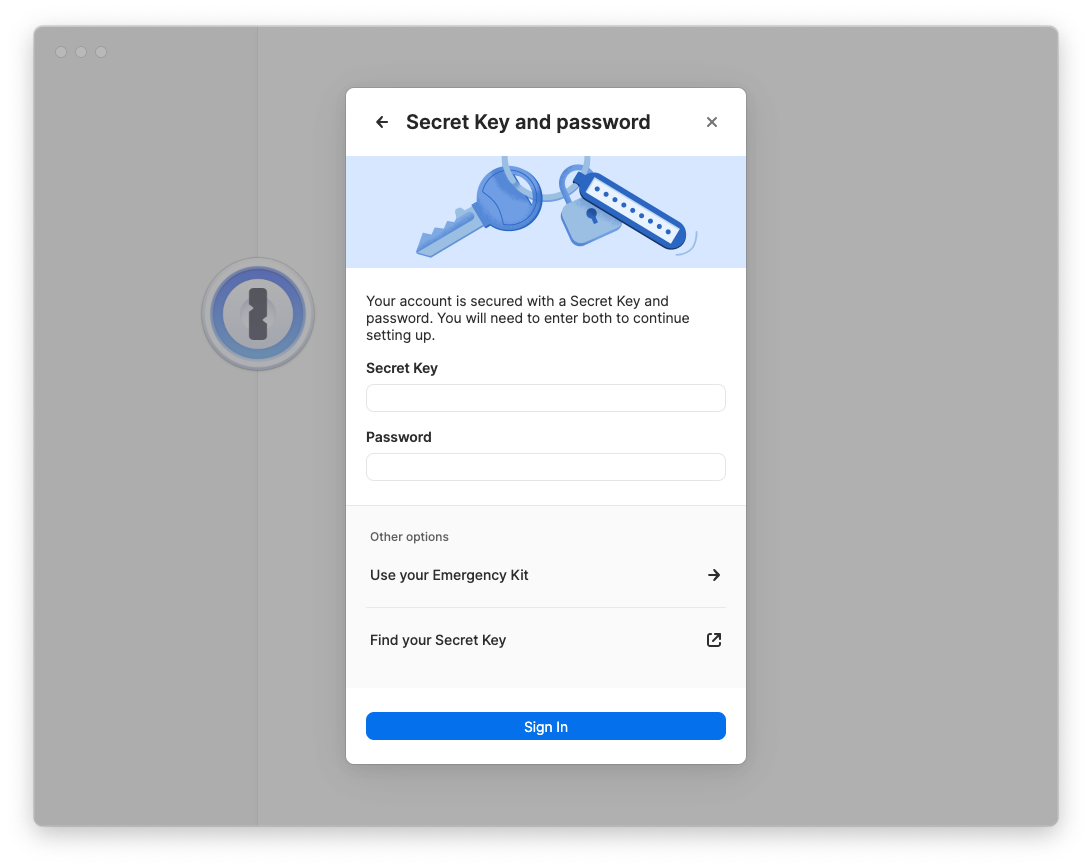
The Sign-In Address is the same for everyone, but your email, Secret Key, and Password are unique to your account. If you can't find these, you will need to retrieve them, which is covered in Section 1.
Once the account info is entered, click Sign In.
🧠
Remember: Please do not write down (or print) either the Password or the Secret Key. The password is your "one" password, your master password, and your memorization of it is critical. The Secret Key is kept safe by the IT staff if you need it in the future.
📌
Note: If you find that your password is difficult for you to type or remember, you do have the option of changing it later. If you'd like to change your master password, the process is covered in Section 4.
Step 2: Configure
Make sure the 1Password app is active/focused by clicking on its window or the app icon in the Dock.
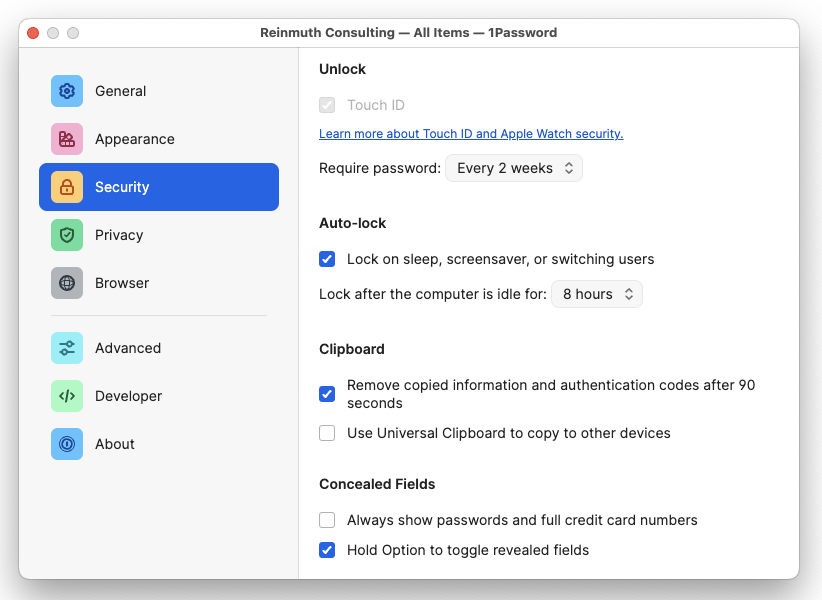
ClickYou onwill the Security tab, configure as follows:
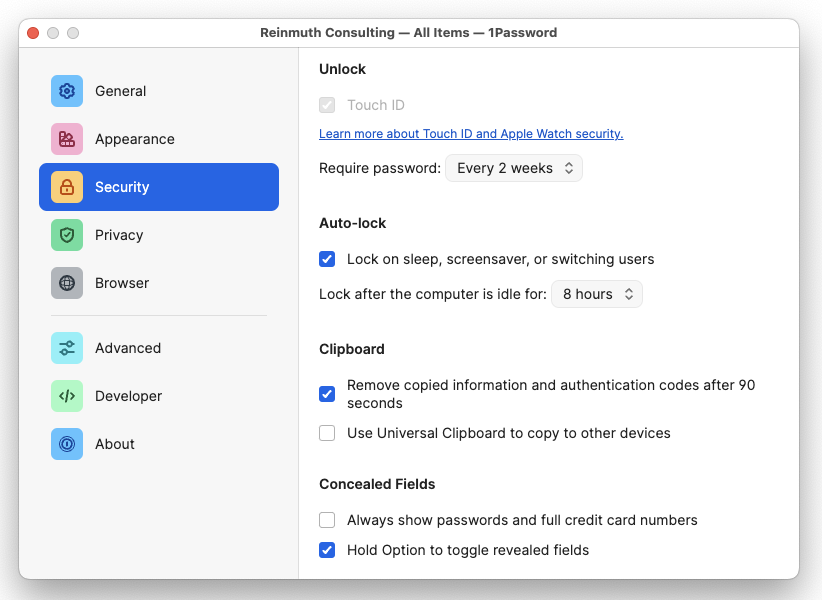
Feel freeneed to lockchange thissettings downin further;three thesedifferent aretabs:
General
In the General tab, under the Default Vault heading, change the Save new items in: setting from "Suggest a vault" or "Employee" or "Private" to your named vault e.g. John Doe.
To be clear: Default Vault should be the user, not Employee.
📌
As of May 1, 2024 the name of the "Private" vault has been changed to "Employee" for 1Password business accounts. This change was not made by us but by the developers of 1Password. Please continue to leave the Employee vault empty.
Security
If the device has Touch ID, make sure it is enabled if you are Ok with using Biometric Authentication. Set "Confirm my account password:" to Every 2 weeks (14 days). This setting will allow you to unlock 1Password with the Touch ID sensor rather than entering your password. However, this will only work for 14 days before you will need to enter your password again to start another 14 day period.
Under the Auto-lock heading, set the "Lock after the computer is idle for:" setting to 8 hours. For comparison, your computer should "lock" after a period of idle time when you're not using it (i.e. typing or moving the mouse) at which point you will need to enter your macOS password (different from your 1Password password). This setting is similar to that, but in this case, the 1Password app will lock after the computer has been idle for 8 hours. At which point you will need to use Touch ID or enter your 1Password password.
Finally, under the Concealed Fields heading, enable the "Hold Option to toggle revealed fields" setting. This is a handy little feature that most users won't use, but IT uses it consistently. If you hold option (aka alt) on your keyboard while in the 1Password app, it will reveal concealed secrets like passwords.
Feel free to lock this down further; these are the minimums. For Example, setting "Lock after the computer is idle" to 4 hours, rather than just 8 hours.
Privacy
Under the Watchtower heading, disable the setting labeled "Check for passkeys" because we do not use passkeys currently.
To reiterate: These are the standardized settings you should have..
SecurityGeneral Tab
- Default Vault
Save new items in:should be set to your named vault e.g.John Doe. It should not be set to "Employee" or "Private" or "Suggest a vault".Security Tab
Unlock: Touch ID should be enabled for Mac (if available) ✅
Auto-Lock:
Check ✅Lock on sleep...SetLock after the computer isto 8 hours. You may set a more strict time such as 4 hours. Check ✅idle...idle for:Lock on sleep...Clipboard:Concealed Fields:
- Check ✅
Remove copied information...- Uncheck 🔲
Use Universal Clipboard...
- Uncheck 🔲
Always show passwords...- Check ✅
Hold Option to toggle revealed fieldsGeneral TabPrivacy
Default VaultWatchtower
- Uncheck 🔲
SaveChecknewforitems in:passkeysshould be set to yournamed vaulte.g.John Doe. It should not be set to "Employee" or "Private" or "Suggest a vault".
Close the Settings window after you have finished with both the General and Security settings.
Step 3: Proceed to Section 3!
You're done!... at least with this part. Continue to Section 3 to install the browser plugin/extension of your choice. If you have any questions, contact IT for help.