Chrome
Step 1: Visit this webpage
https://support.1password.com/getting-started-browser/
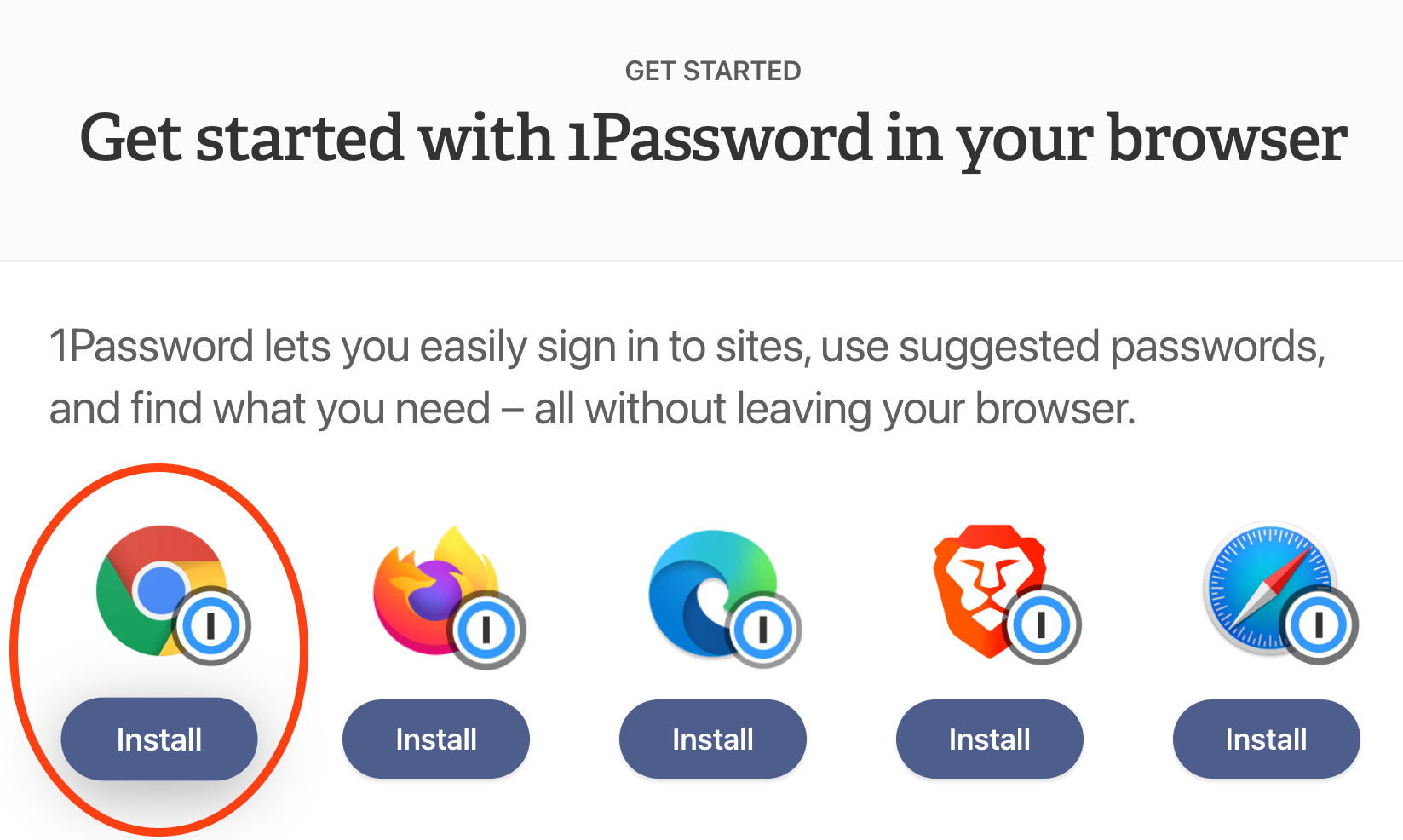
Step 2: Select Chrome
Click on the "Install" button under the icon corresponding to the web browser you are using at the moment.
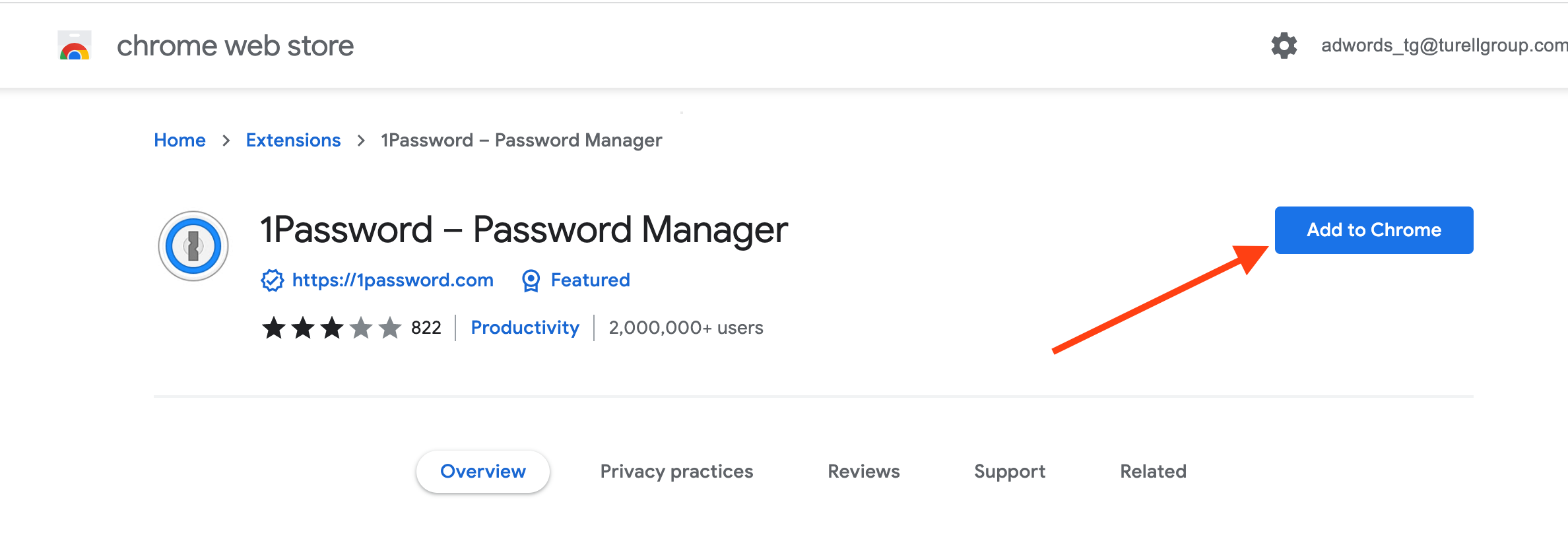
Step 3: Add the 1Password icon to your browser
Click on the "Add to Chrome" button.
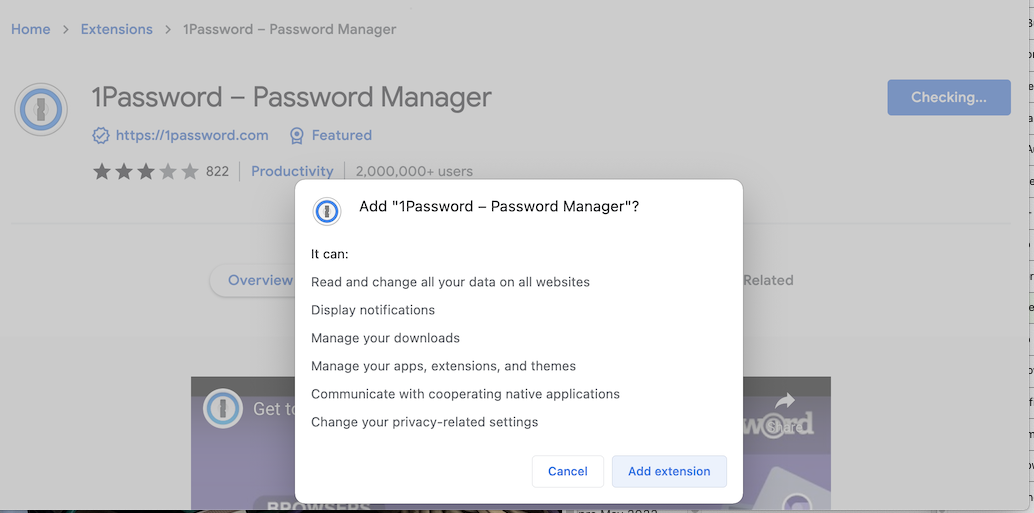
Step 4: Permissions
Click on the "Add Extension" button on the pop-up.
Step 5: Log into 1Password
You should see the 1Password icon appear in the top right corner, next to your search bar:

Click the icon and use your password (or TouchID!) to unlock - autofilling will not work until you unlock 1Password.
Step 6: Puzzle icon and pin
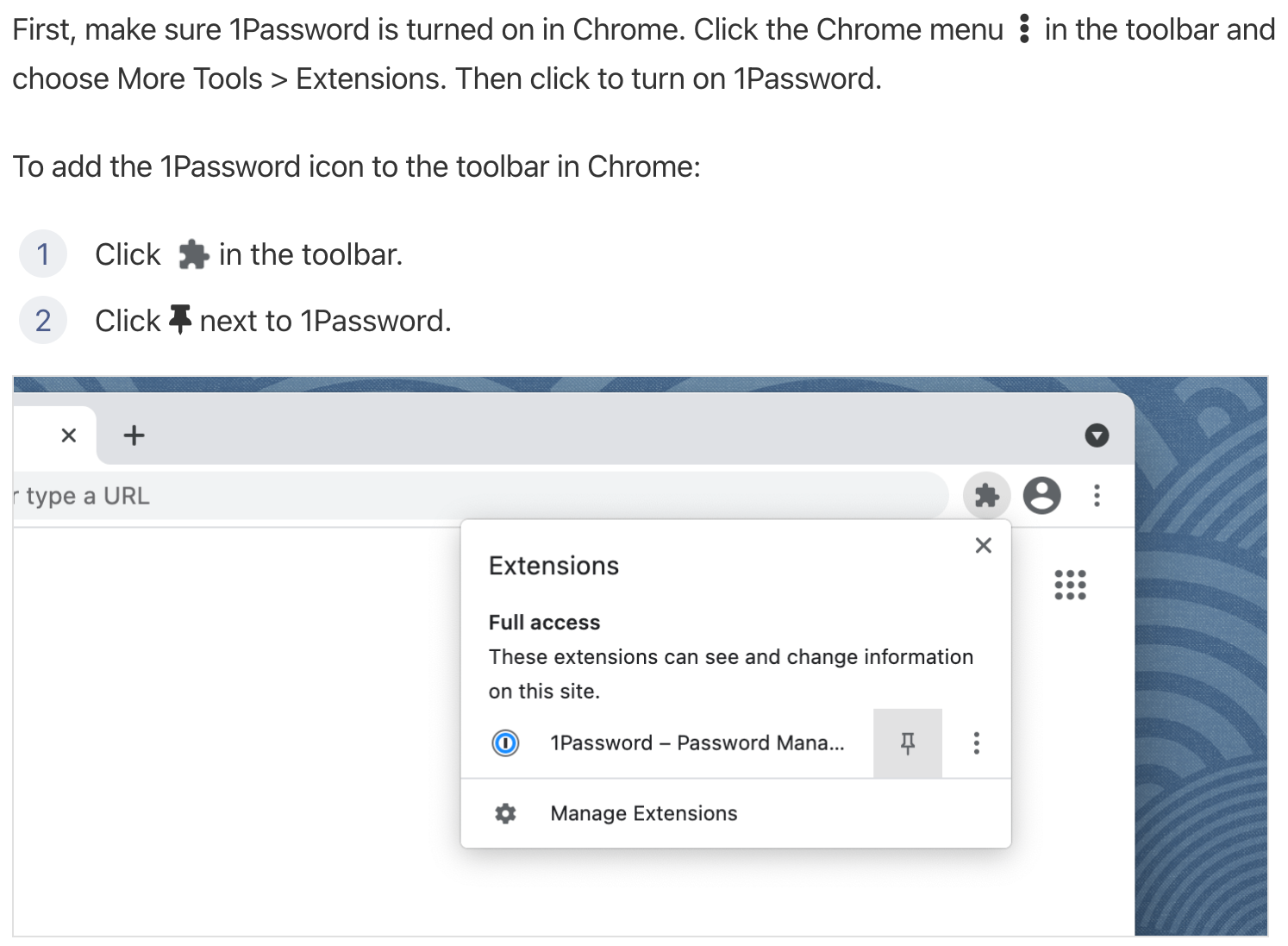
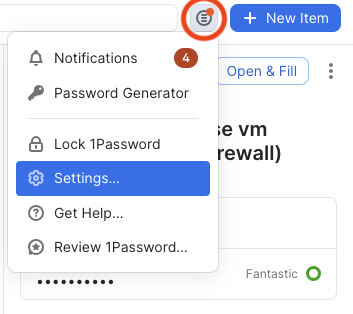
Step 7: Configure
Settings... as shown:
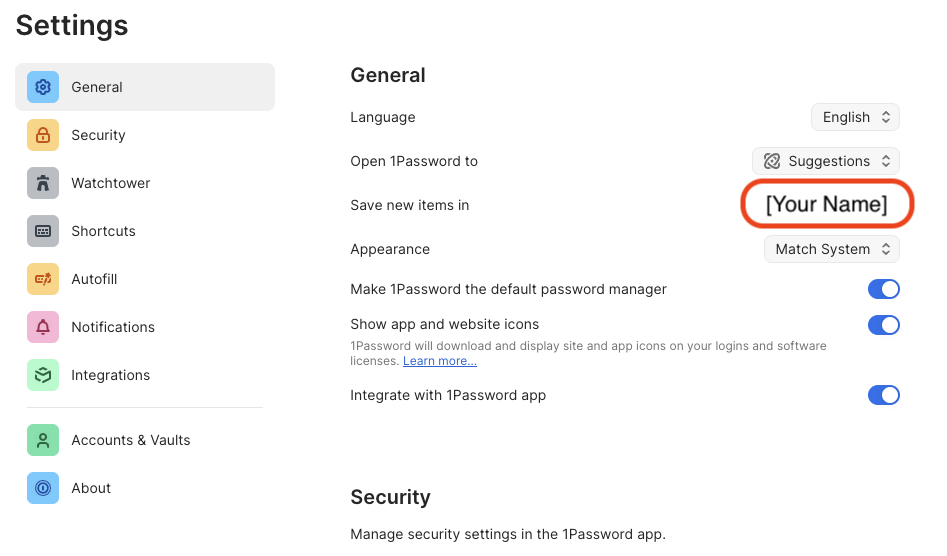
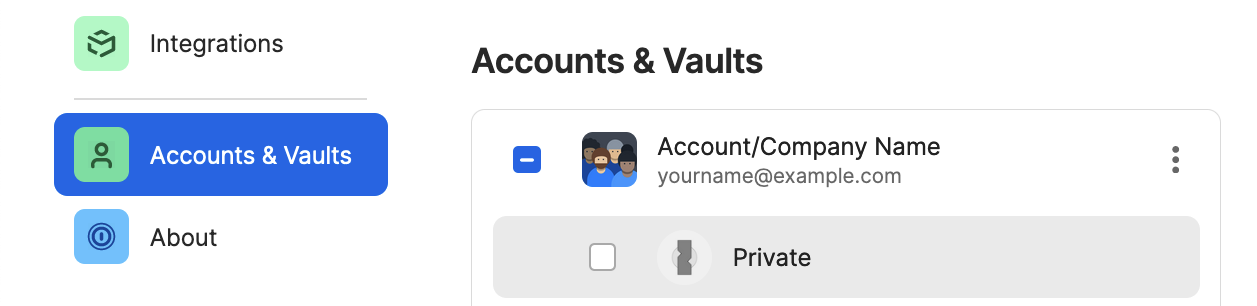
General ➝ Save new items in please ensure your named vault is selected! Example:
Done!
Troubleshooting:
If you are running into issues please check these items:
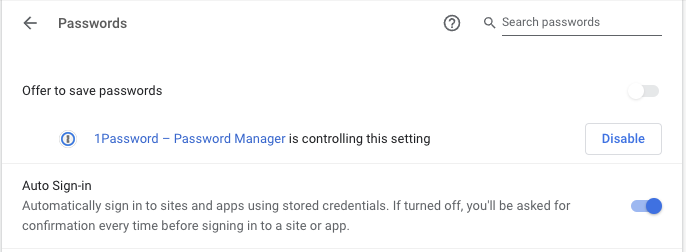
If you are still having trouble, please see: https://support.1password.com/missing-browser-button/
Chrome - Incognito Mode tip
=====
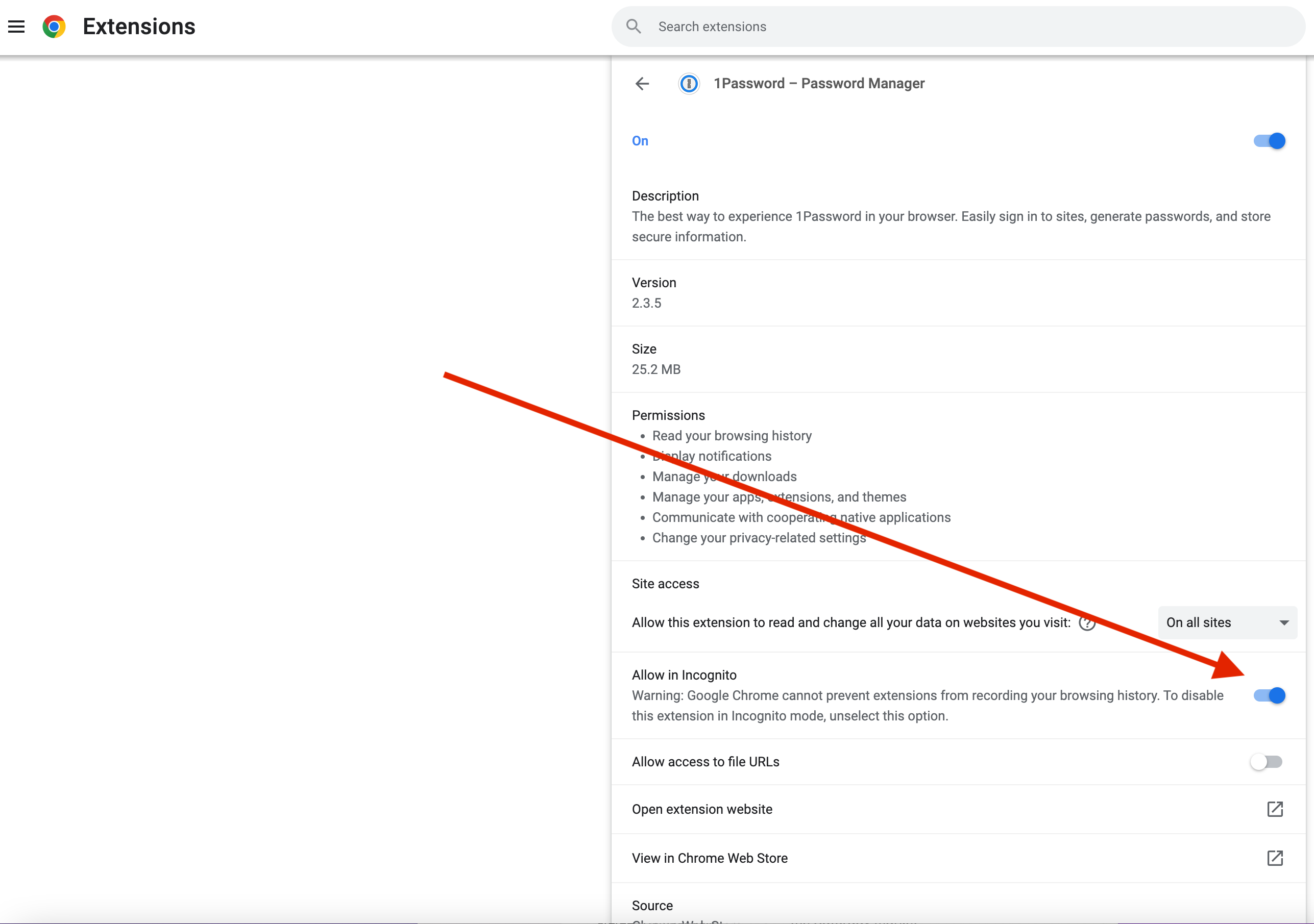
In order to still be able to access 1Password while in incognito mode, please follow the instructions below to configure your browser.
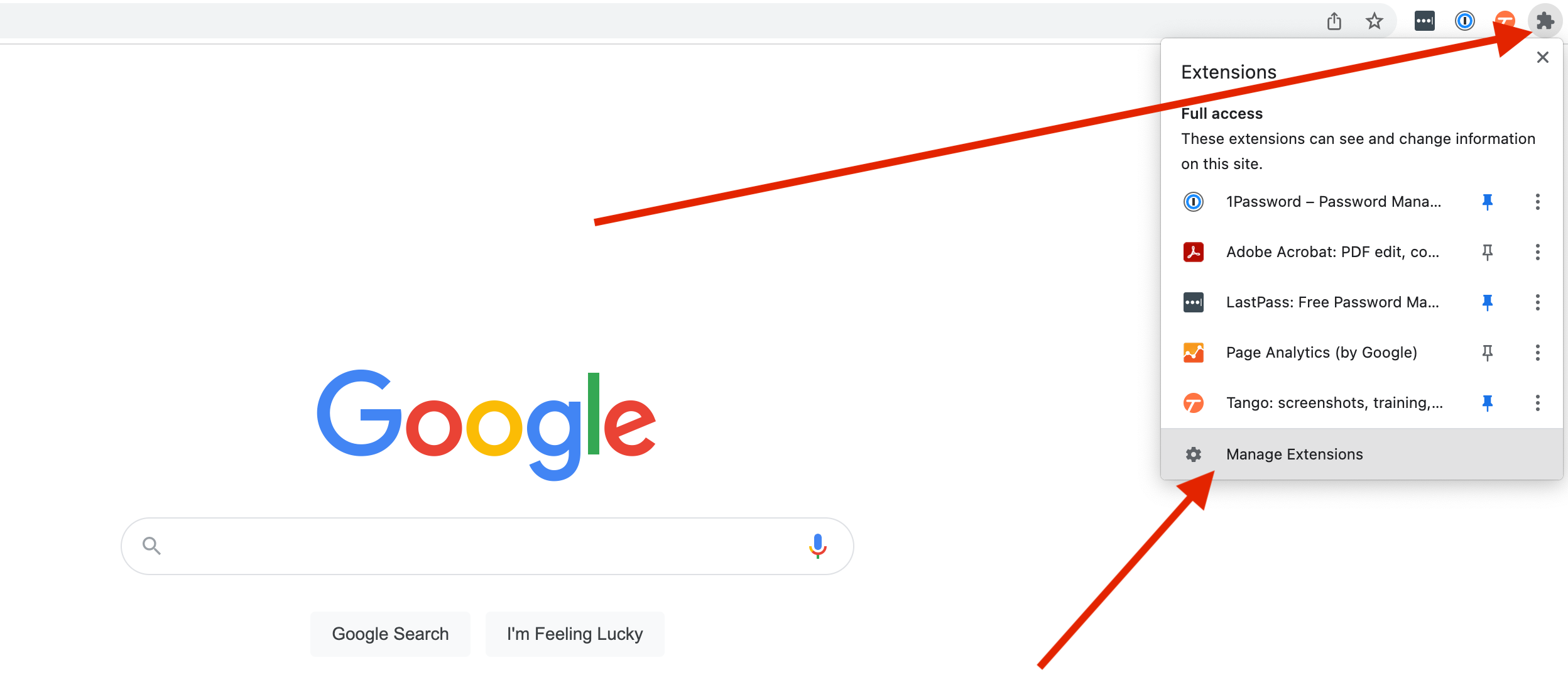
Step 1: Click on the puzzle icon in the top right corner of your browser, then click on Manage Extensions
Step 2: Click on Details in the 1Password box
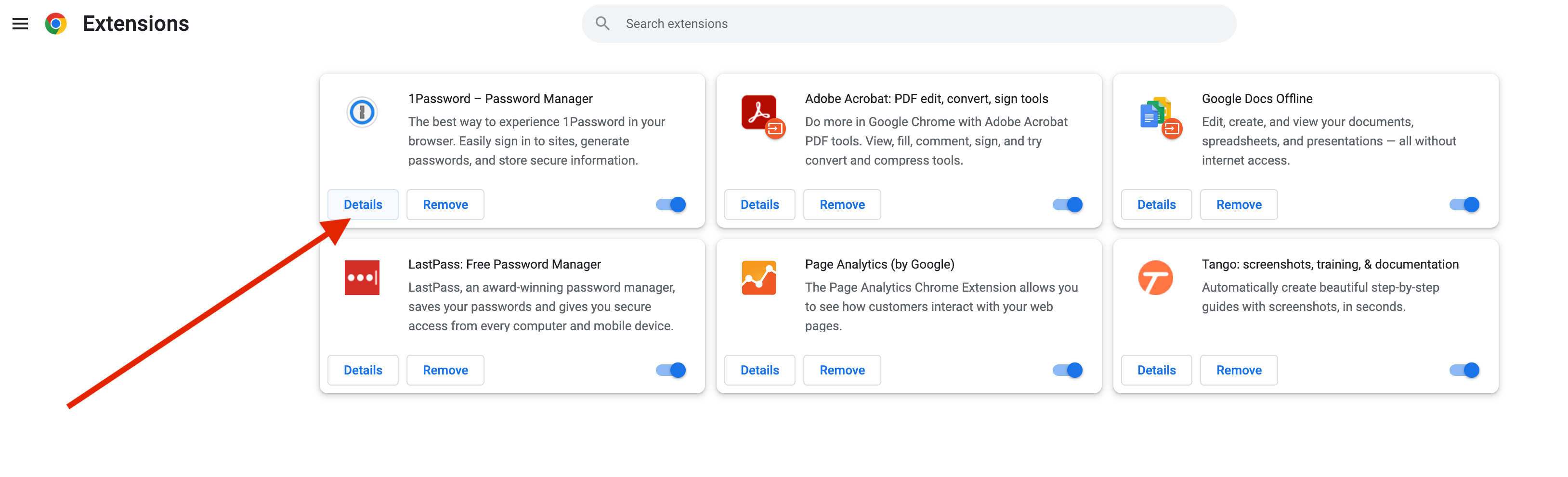
Step 3: Click on the switch to turn it blue